What Knytera Insight Does
Knytera Insight assists in reviewing body camera footage by using AI to flag potential pre-assault behavioral indicators — the physical cues that can precede a violent encounter. Currently the AI can help identify hidden hands and glancing behavior, with more cue types being added over time as the models improve.
The platform does two things: it gives instructors a tool to build high-quality, repeatable training scenarios from real footage, and it gives members a structured way to practice recognizing those indicators before they face them in the field.
The AI is a starting point — not the final word. Every detection the AI makes goes through instructor review before it becomes training material. Humans have the final say on what counts.
Your Workflow — Training on a Session
Open a training session
From the Sessions page, find a session and click Review Session. Sessions marked Curated have been reviewed by an instructor — these give you the most accurate feedback.
Watch the video — AI cues are hidden
Training mode hides AI detections until you submit. Watch the footage as you would in the field. Pay attention to the subject's hands, body posture, and eye movement.
Mark indicators as you spot them
When you see a potential pre-assault indicator, pause the video and click Mark. Select the indicator type and confirm. You can mark multiple cues and mark the same type more than once.
Submit and review your score
Click Submit to lock your marks and reveal the AI (or instructor-curated) detections. Your results show: Matched (you caught it), Missed (you didn't catch it), and False Positives (you marked it but it wasn't confirmed). For curated sessions, instructor explanations appear for every cue.
You can retake any session to improve your score.Indicators the AI Can Help Catch
Below are the behavioral indicators Knytera Insight currently detects. We are actively working to expand AI detection to more cue types over time.
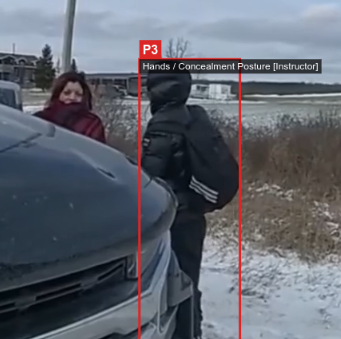
Hidden Hands
HighHands not clearly visible — concealed at the waistband, tucked into clothing, or obscured from the contact's view. One of the strongest pre-assault indicators, particularly when combined with other cues.
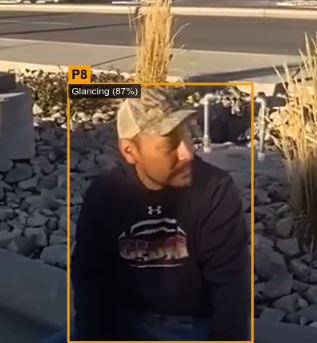
Glancing
MediumRapid or repeated scanning beyond what is socially normal — checking exits, nearby people, or the contact's position. Indicates heightened situational awareness consistent with pre-assault planning.
Instructors can always add manual cues for any behavior not yet detected by the AI — including bladed stance, clenched fists, clothing adjustment, and more.
Tips for Best Results
- Always curate before sharing with members. The AI has false positives. Uncurated sessions score members against raw AI output, which may not reflect your training standards.
- Add explanations to every curated cue. Members learn more from a short explanation ("hands move to waistband at 0:14") than from a marker alone.
- Members can retake sessions as many times as they want. Encourage it — repeated exposure to the same footage builds pattern recognition.
Frequently Asked Questions
Can other departments see our videos?
No. Every video and all session data is strictly scoped to your organization. No other department can access your footage, detections, or member performance data. Each organization's data is completely isolated.
What do you use our videos for?
With your consent (the "allow video to be used to improve the model" option when uploading), we use retained footage to improve AI detection and expand the range of cues the system can identify. Your real-world body camera footage helps train more accurate models — which benefits all users. If you do not consent, the video is used only for your own review and is not retained for training purposes.
What does the detection sensitivity setting control?
The confidence threshold filters AI detections by certainty. At 80% (the default), only detections the AI is at least 80% confident about are shown. Lower values show more detections — including ones the AI is less sure of. Higher values show fewer, higher-certainty detections only. Start at 80% and adjust based on what you see during curation.
What does "Curated" mean on a session card?
A curated session has been reviewed by an instructor who accepted accurate AI detections, removed false positives, and optionally added cues the AI missed. This instructor-verified set becomes the ground truth that member scores are calculated against. Non-curated sessions use raw AI output, which may include false positives.
How accurate is the AI?
The AI is a training aid — not a definitive detector. It catches a meaningful portion of pre-assault cues and occasionally flags false positives, which is why instructor curation exists. Accuracy varies by cue type, camera angle, lighting, and encounter dynamics. The system is designed for instructors to review and correct AI output before members are scored against it.
What video format is required?
Videos must be MP4 format with H.264 encoding — the standard output format for most body-worn camera systems. Maximum file size is 2 GB and maximum duration is 30 minutes. If your BWC system exports in a different format, convert using HandBrake (free, Windows/Mac/Linux).
How do I add a new member to my organization?
From the Sessions page, click Manage Users (admins only). Enter their email address and send the invite. They will receive a link to set their password and immediately have access to all sessions in your organization. Invite links expire after 7 days — resend if they miss it.
Why does my score show missed cues I did not see?
The comparison shows every cue confirmed by the AI (or instructor, for curated sessions) within a timing window of your marks. A "missed" cue means the cue was present in the footage but you did not mark it. Retaking the session with this knowledge is intentional — repeated exposure helps build recognition for cues you previously missed.
Troubleshooting
My session is stuck on "Analyzing" — what do I do?
Analysis typically takes 1–3 minutes per minute of video. If your session has been in "Analyzing" status for more than 30 minutes, it may have encountered an error. Admins can use the Re-queue button that appears on ERROR sessions to restart analysis. If the session is not showing an error and is still stuck, email us at jeffreypattison@knyteratech.com.
My video upload failed. What could cause this?
Common causes: (1) File is not MP4/H.264 — convert it first. (2) File exceeds 2 GB — trim or compress the video. (3) Duration exceeds 30 minutes — split into shorter clips. (4) Network interruption during upload — try again on a stable connection. If the error message is unclear, note it and email us at jeffreypattison@knyteratech.com.
The video won't play in my browser.
Try a different browser — Chrome or Firefox work best. Safari may have issues with some MP4 encodings. If you are on a VPN, try temporarily disabling it, as some VPN configurations interfere with video streaming. If the issue persists, email us at jeffreypattison@knyteratech.com with your browser version and operating system.
A member can't log in or their invite link doesn't work.
Invite links expire after 7 days. Admins can resend a new invite from Manage Users. If the member accepted an invite but cannot log in, have them use the link again — invite acceptance sets the password on first use only. If the account exists and they forgot their password, direct them to the Forgot Password link on the login page — they can reset it themselves. If the problem persists, email us at jeffreypattison@knyteratech.com.
The AI flagged cues that are clearly wrong.
This is expected and is exactly why instructor curation exists. During curation, remove any AI detection that is not a genuine pre-assault indicator. Members will never be scored against removed detections in curated sessions. If you see the same false positive type appearing repeatedly, note the pattern — it is useful feedback about model behavior that helps us improve.